
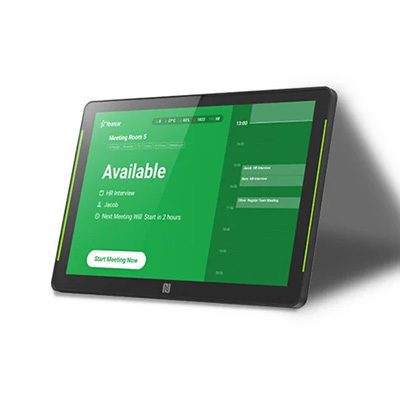


Yeastar Room Display (DS7510-868M)
Yeastar Room Display (DS7510-868M) Resolution, 1280 x 800 pixels ; Display · Active Area, 216.58 (L) x 135.36 (H) mm ; Display · Screen to Body Ratio, 74.88%.
Description
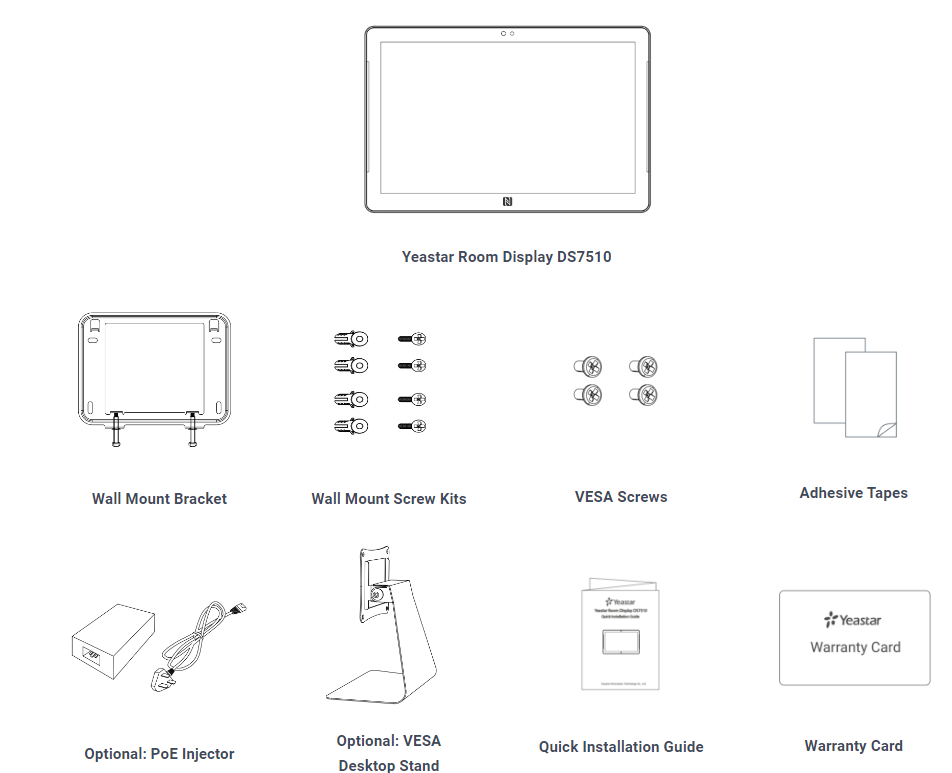
Before you begin to install Yeastar Room Display, make sure all of the following items are included in the product package.
Hardware overview
 |
|
Install Room Display DS7510
Yeastar Room Display DS7510 supports three mounting solutions, choose one of the following methods to install the device.
- Wall mounting
- Glass mounting
- VESA desktop stand mounting
- Wall mounting
-
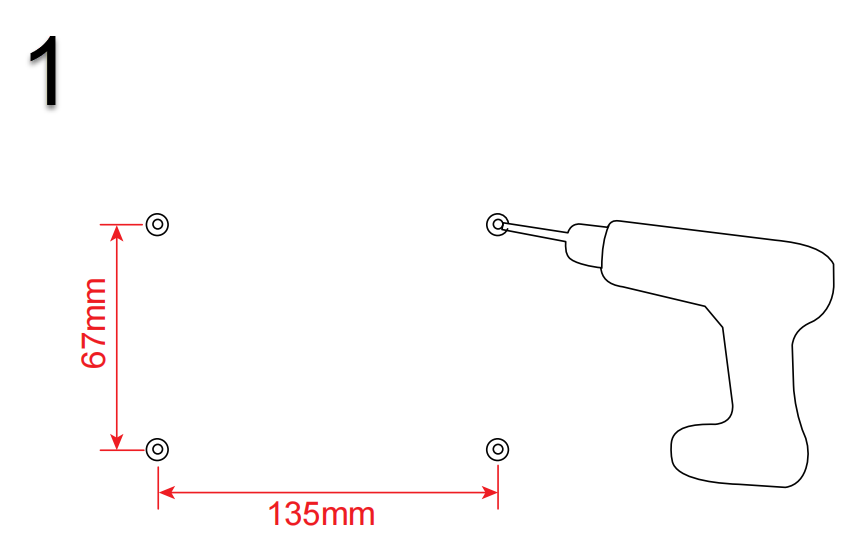
1. Use a 6mm diameter drill bit to drill four holes to a depth of 30mm at the desired height on the wall.
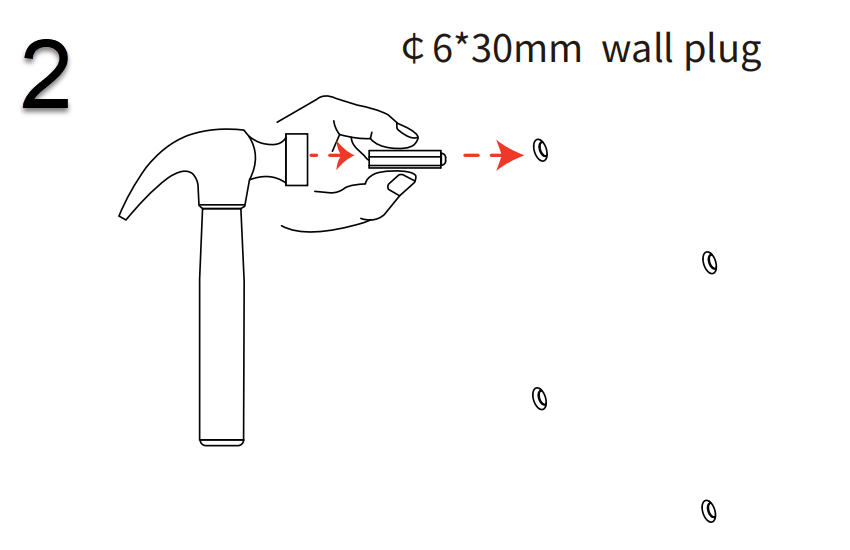
2. Hammer the wall plugs into the holes respectively.

3. Press the bracket on the wall with the TOP logo side facing up and align its holes with the wall plugs, then fix the screws into the wall plugs.
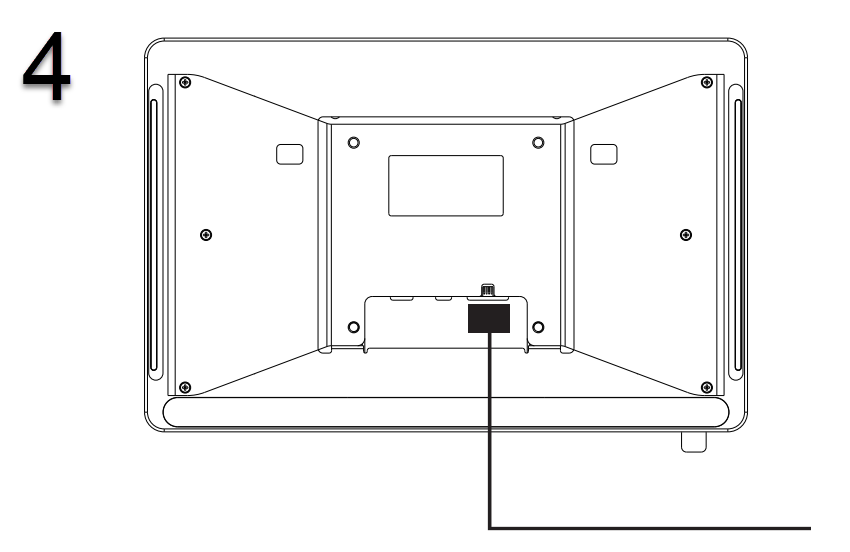
4. Plug an Ethernet cable into the Ethernet port of the Room Display.
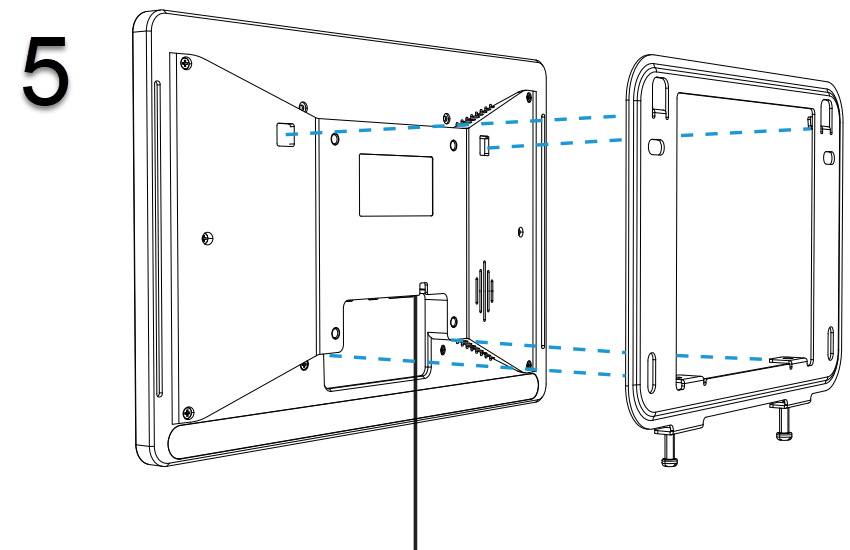
5. Mount the Room Display on the Wall Mount Bracket.
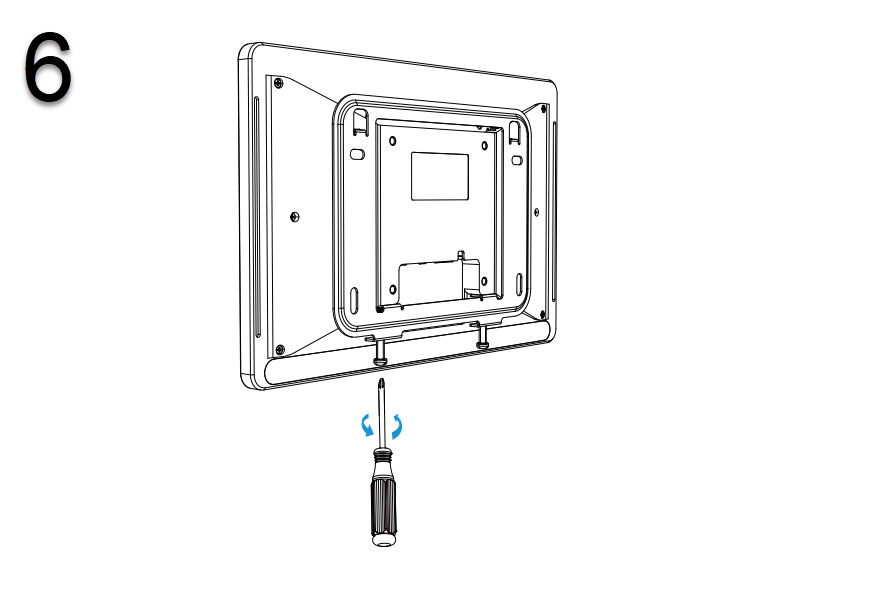
6. Fix the Room Display to the bracket by tightening the 2 screws at the bottom of the bracket.
- Glass Mounting
-

1. Attach the tape on the back of the Wall Mount Bracket, and attach the bracket at the desired height on the glass with the TOP logo side facing up.
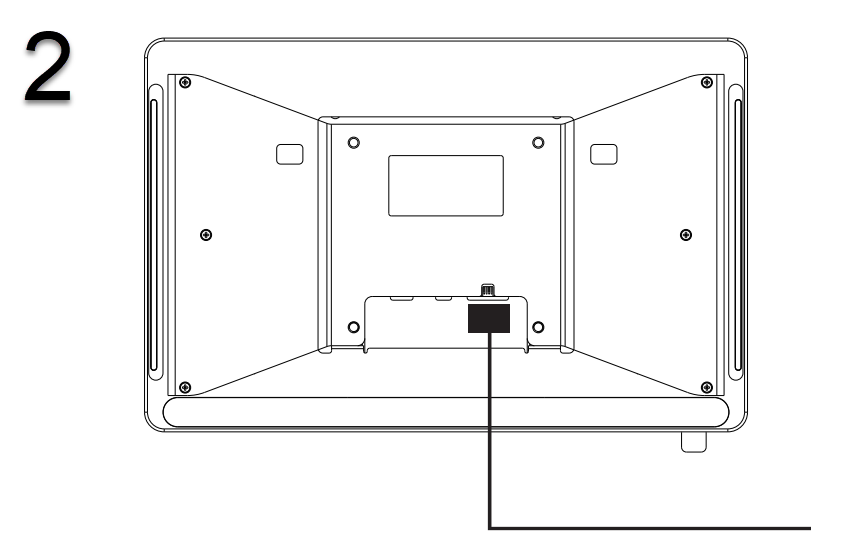
2. Plug an Ethernet cable into the Ethernet port of the Room Display.
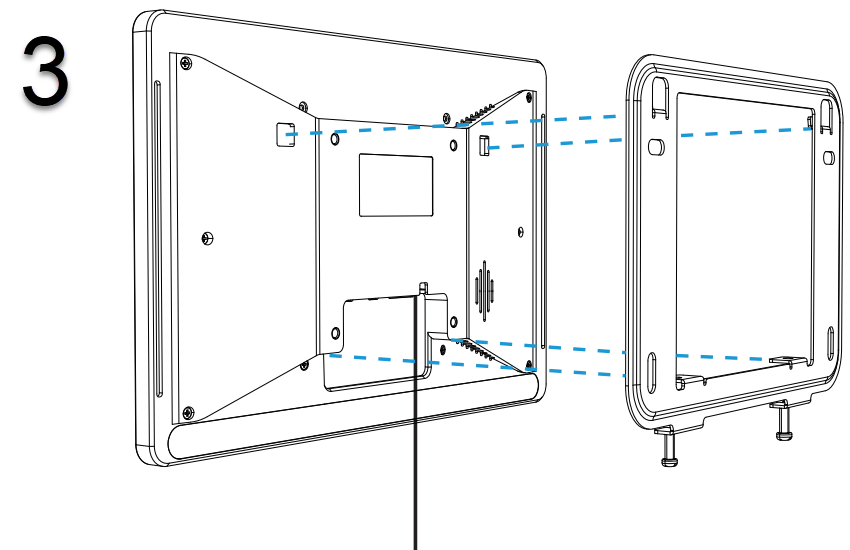
3. Mount the Room Display on the Wall Mount Bracket.
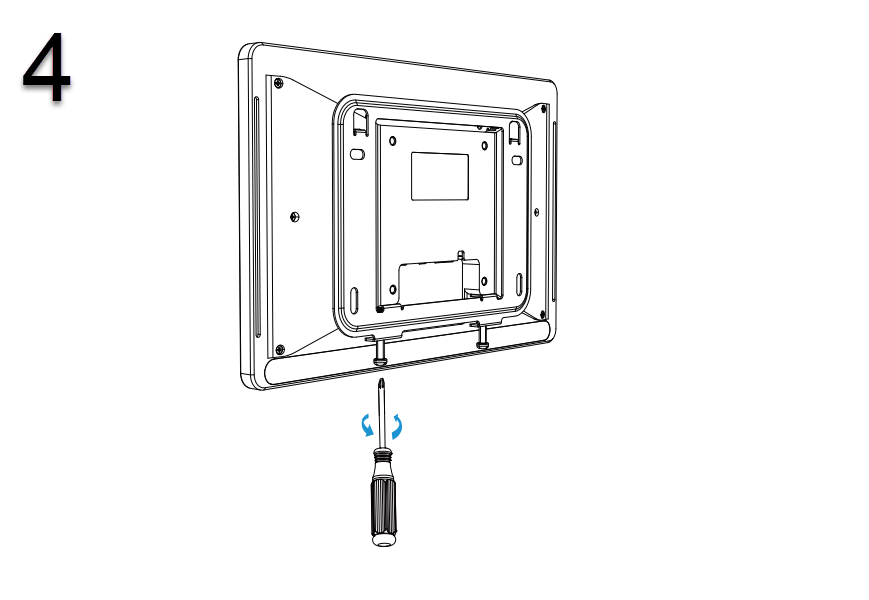
4. Fix the Room Display to the bracket by tightening the 2 screws at the bottom of the bracket.
- VESA desktop stand mounting
-
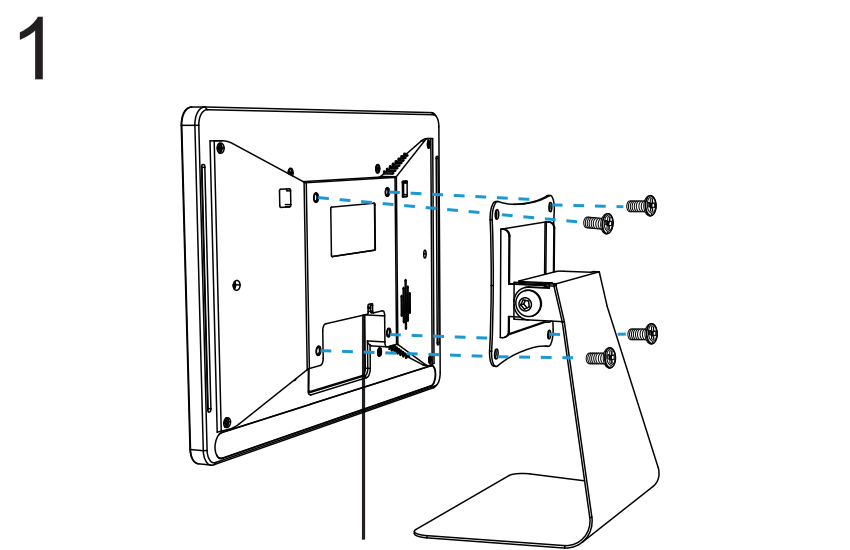
1. Plug an Ethernet cable into the Ethernet port of the Room Display. Then lift the Room Display and align its VESA holes with the VESA desktop stand.

2. Fix the Room Display to the VESA desktop stand by tightening the screws.
Power supply and network connection
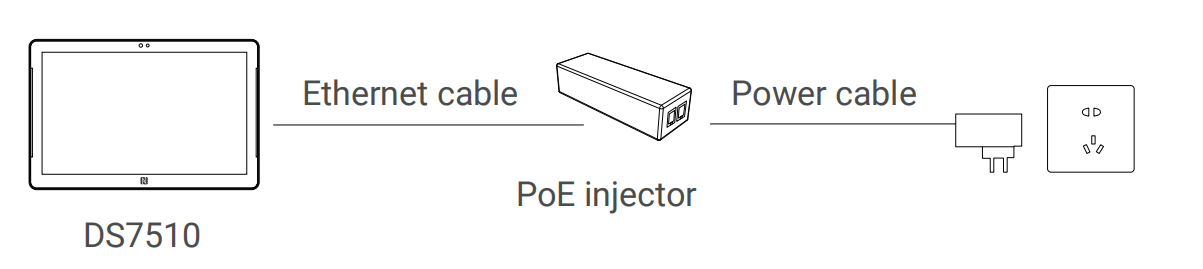
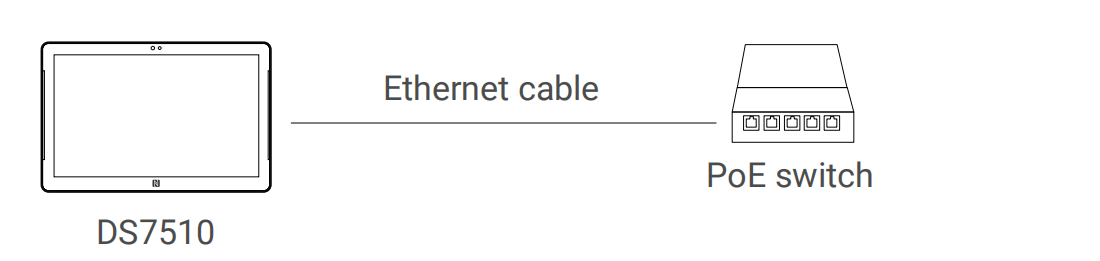
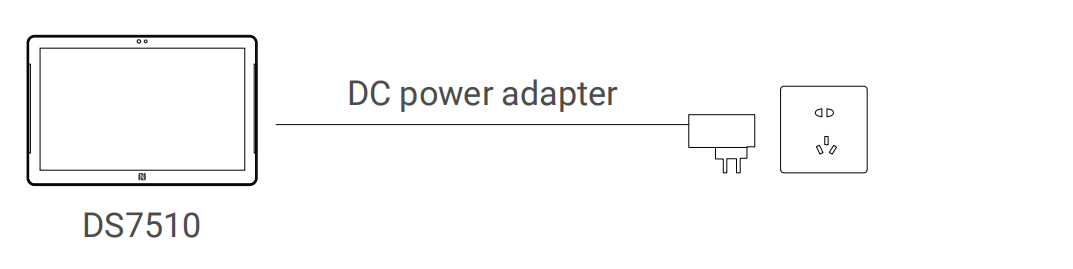
Yeastar Room Display DS7510 can be powered via a PoE injector, PoE switch, or a DC power adapter. Choose one of the following methods to power up the Room Display and connect it to the Internet.
- PoE injector power supply and network connection
- PoE switch power supply and network connection
- DC power adapter power supply and network connection
- PoE injector power supply and network connection
-
- Powere on the device via a PoE injector.
-
Connect the Ethernet cable of the Room Display to the Data+Power port of the PoE injector.
-
Plug the power cable from PoE injector to a power outlet.
-
- Choose one of the following methods to connect the device to the Internet.
- Wireless network connection:
-
After the Room Display boots up, tap Configure the System Network on the screen.
-
Enable Wi-Fi and connect the device to a Wi-Fi network.
-
- Wired network connection: Plug an Ethernet cable into the DATA port of PoE injector and connect it to the switch.
- Wireless network connection:
- Powere on the device via a PoE injector.
- PoE switch power supply and network connection
- Connect the Ethernet cable of the Room Display to a PoE switch. The Room Display is powered on and connected to the Internet via the PoE switch.
- DC power adapter power supply and network connection
-
- Connect the DC power jack of the Room Display and the power outlet with a DC power adapter (3.5 X 1.3 mm plug).
- Choose one of the following methods to connect the device to the Internet.
- Wireless network connection:
- After the Room Display boots up, tap Configure the System Network on the screen.
- Enable Wi-Fi and connect the device to a Wi-Fi network.
- Wired network connection: Connect the Ethernet cable of the Room Display with a switch.
- Wireless network connection:
- Connect the DC power jack of the Room Display and the power outlet with a DC power adapter (3.5 X 1.3 mm plug).


Reviews
There are no reviews yet.